> ## Documentation Index
> Fetch the complete documentation index at: https://docs.vanna.finance/llms.txt
> Use this file to discover all available pages before exploring further.
# Single-Asset Pools
> Deposit one asset into a lending pool, receive b-Tokens, and earn yield from borrower interest.
Single-asset pools let you deploy one asset from your Margin Account into an external lending pool and earn yield passively. When you deposit, you receive **b-Tokens** - receipt tokens that track your share and accrue interest automatically.
## Understanding b-Tokens
b-Tokens work similarly to vTokens in the Earn section, but they come from a different external protocol. The key concept is the **b-Rate** - the exchange rate between your b-Token and the underlying asset.
**Example:** If `1 bXLM = 1.33 XLM`, depositing 593.99 XLM gives you 447.65 bXLM. As borrowers pay interest, the b-Rate increases - so when you withdraw, your 447.65 bXLM redeems for more than 593.99 XLM. The difference is your earned yield.
Your b-Token balance stays constant. The b-Rate goes up. That's how yield accrues.
## Add Liquidity
Click **Farm** in the top navigation. On the pool list, select the **Lending/Single Assets** filter to see single-asset pools.
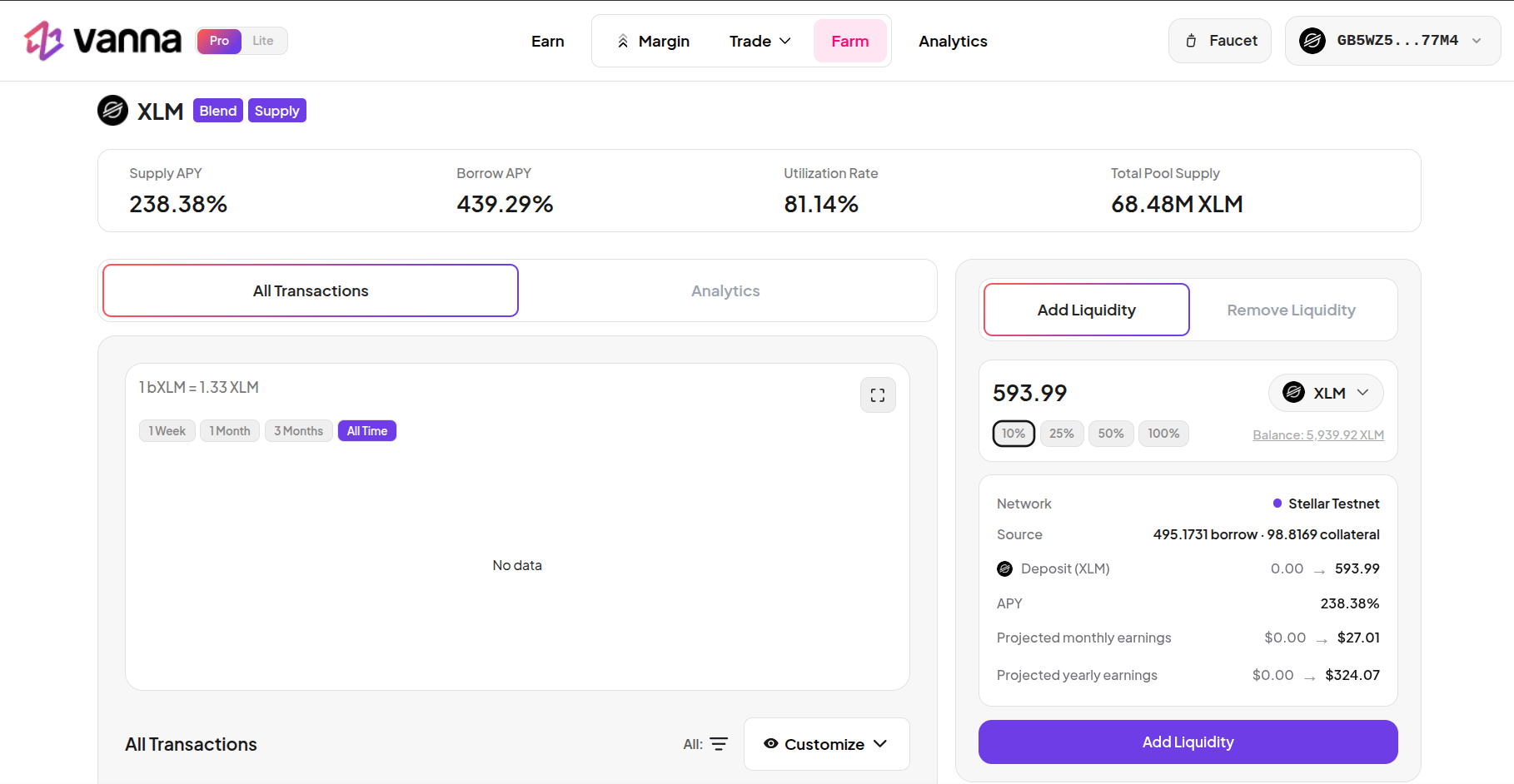
Click on a single-asset pool. The pool page shows live statistics: Supply APY, Borrow APY, Utilization Rate, Total Pool Supply, and the current b-Rate.
Make sure **Add Liquidity** is selected on the right panel. Enter the amount to deploy from your Margin Account balance. Use the quick-select buttons (10% / 25% / 50% / 100%).
The panel shows:
* **b-Tokens you will receive**
* **APY** - current supply yield
* **Projected monthly and yearly earnings**
* **Source** - how much of the amount comes from your borrow vs collateral balance
Click **Add Liquidity** and approve the transaction in your wallet.
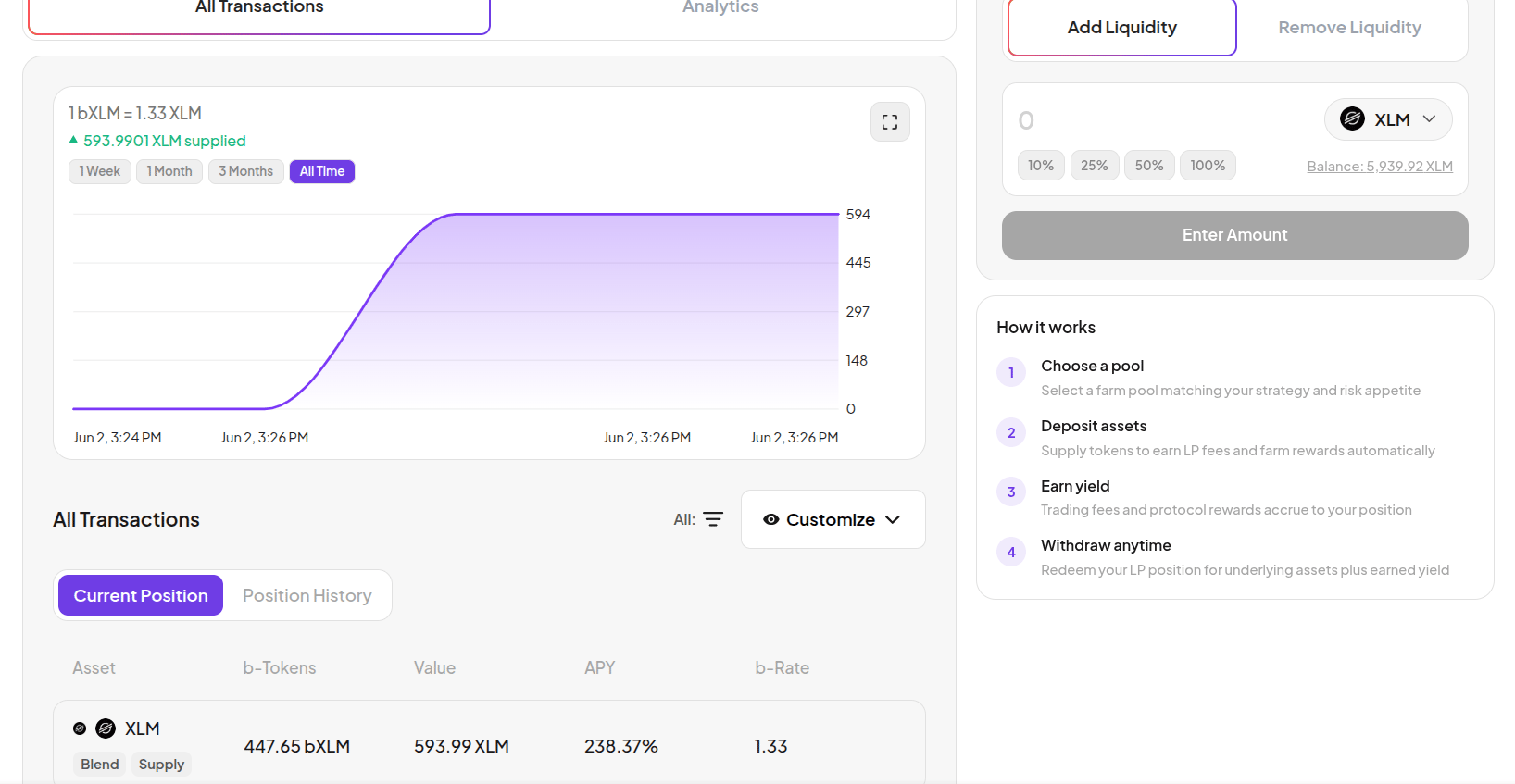
After confirming, go to the **All Transactions** tab. Your position chart shows your supplied value over time. The position table shows your b-Token balance, current value, APY, and b-Rate.
## Analytics tab
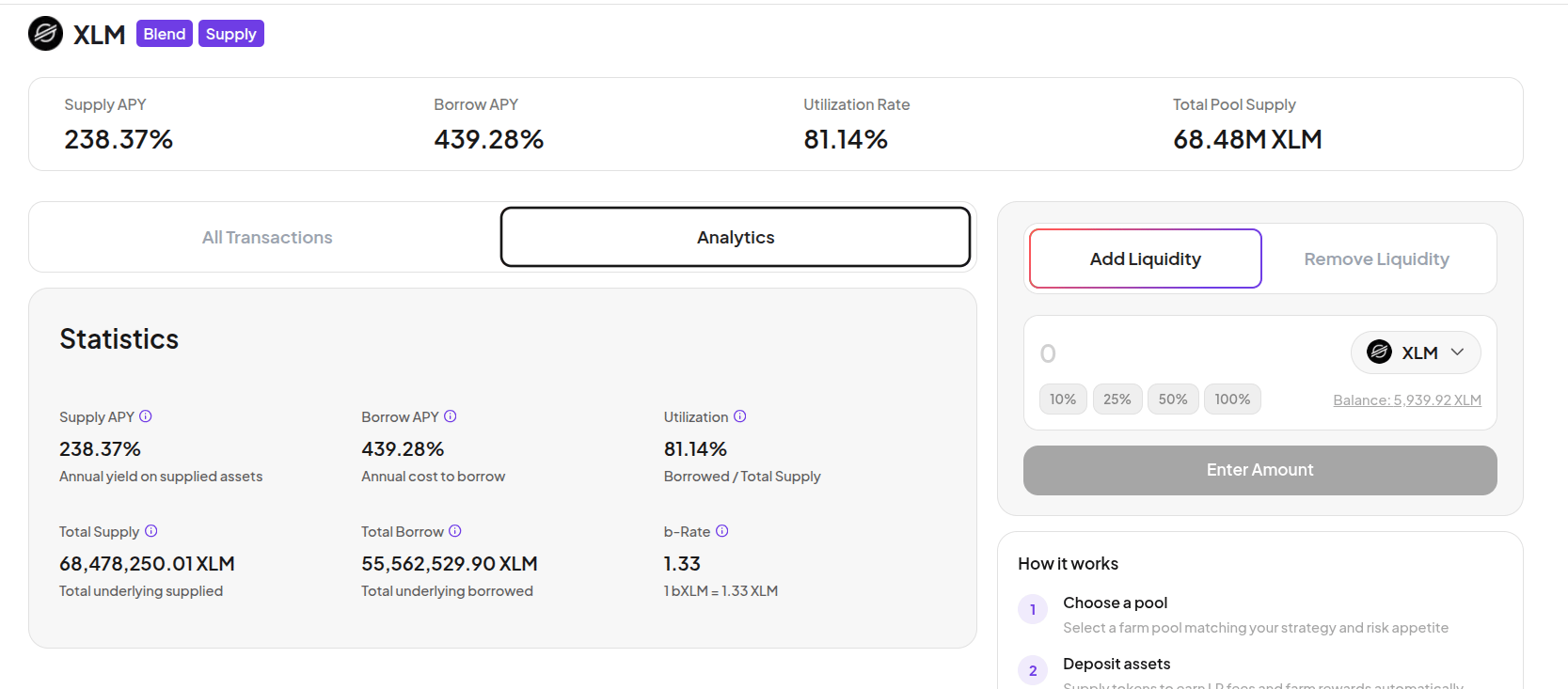
Click the **Analytics** tab on the pool page for detailed pool statistics - Supply APY, Borrow APY, Utilization, Total Supply, Total Borrow, and the current b-Rate.
## Remove Liquidity
Click **Farm** and open the pool where you have a position.
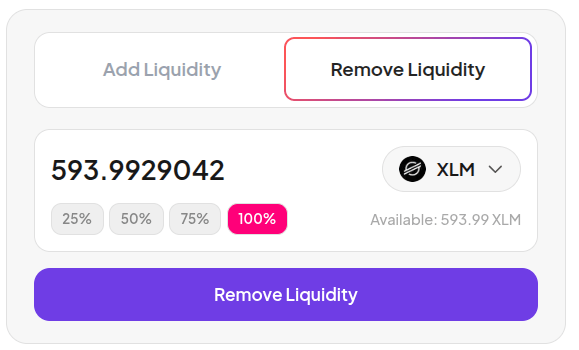
Click **Remove Liquidity** on the right panel. Your full b-Token balance is pre-filled. Use the percentage buttons (25% / 50% / 75% / 100%) to choose how much to withdraw.
Click **Remove Liquidity** and approve in your wallet. The underlying asset returns to your Margin Account balance.
## Related
* [Farm Overview](/guides/farm/overview)
* [LP Pools](/guides/farm/amm-liquidity)
* [Earn Overview](/guides/earn/overview) - Vanna's native lending pools (different from Farm)